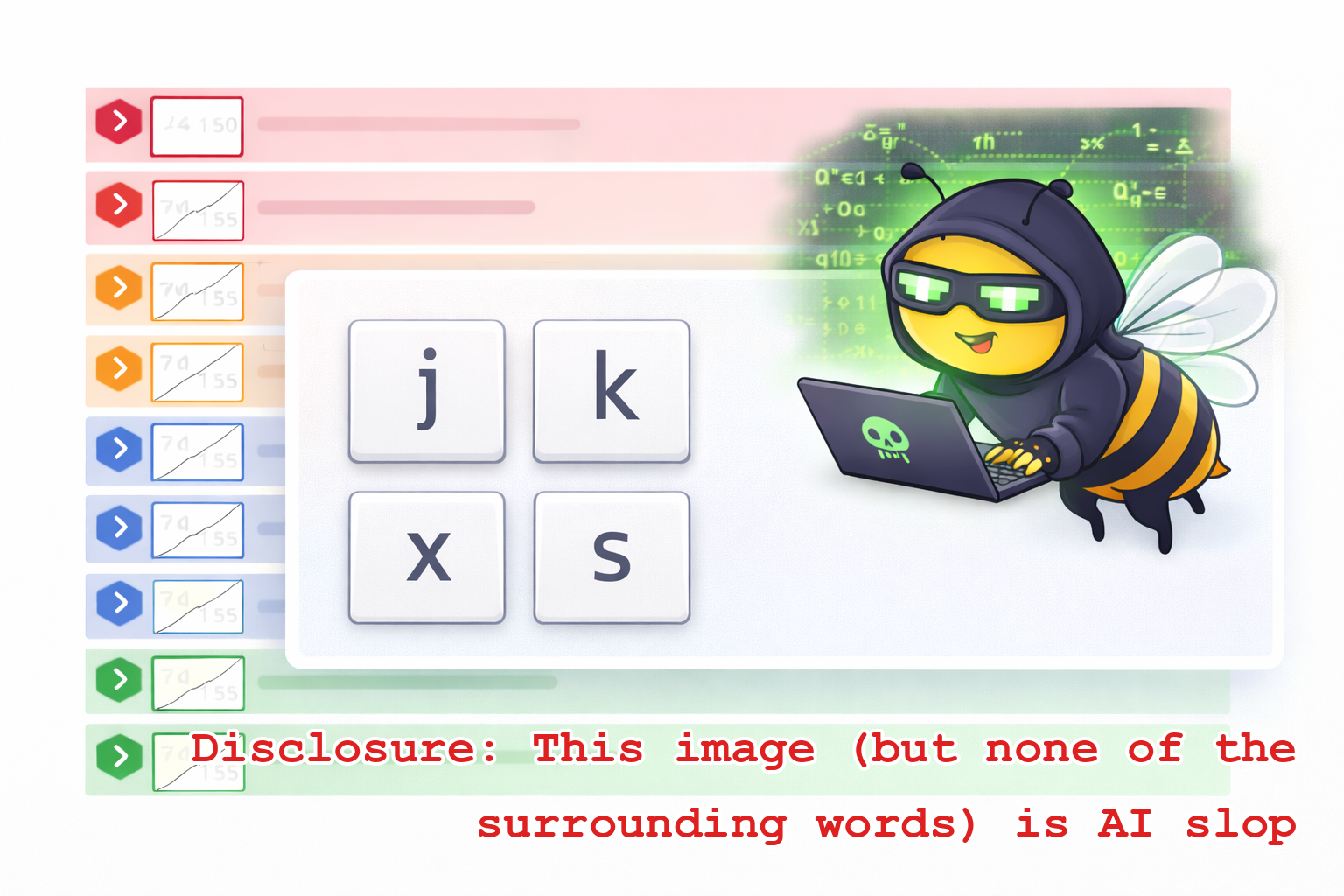
I’ve been telling people in the forum about my work/life dashboard. I keep my Beeminder dashboard open in a dedicated browser throughout the day, and use it like a to-do list. At the start of the day I uncollapse all the goals I intend to work on that day. That will be all of the red goals, and often many of the orange ones too, though not necessarily all of them. Occasionally there are some blue or green goals in the list as well for whatever rare instances of ambition or pre-planning may arise. Then after I finish doing the things and enter the data, I can collapse the goal to make it smaller, and re-sort by deadline, to keep the done things shuffling down and the urgent things bubbling up.
Only problem is, all this collapsing and uncollapsing and data entry etc involves a lot of clicking around, and I’m vaguely anti-mouse. [1] I’ve used Vim for almost the entirety of my coding career, because I like the dichotomy of insert mode vs command mode. And as a Vim fan, I like any other interface that uses h-j-k-l for navigation (in place of arrow keys), like hitting j and k to scooch up and down past emails I don’t want to answer in Gmail, or bugs I don’t want to fix in our GitHub repos.
So after writing that forum post the other day, detailing all the clicking and scrolling and blah blah blah, it got me thinking about keyboard shortcuts again. As you do. I do? And so today, just to please myself, I implemented them. It turns out it was super easy, not just because robot minions, but because there were no UI tradeoffs. If you’re not into keyboard shortcuts, you never need know this exists.
As of a couple hours ago, you can type “?” to bring up a modal with this cheatsheet:
In text summary (because I can’t stand to give an image of text as the sole description of it): use the ↓/↑ keys, or j/k to enter keyboard mode, and move up and down the list.
The Enter key or x will toggle the expanded-ness of the current goal row.
e to add new data or refetch from the autodata source, if it’s an autodata goal.
r refetches from Beeminder’s servers.
g goes to the goal page.
s toggles super-collapse.
Esc or clicking anywhere exits keyboard mode.
Refetch
The first thing I want to highlight here is being able to refetch the latest data from the Beeminder server by selecting the goal and typing “r”. (Mouse people can also do this by double-clicking a goal’s hexy chevron, i.e., expanding and collapsing in rapid succession.) I have a lot of goals and some of them get data automatically from autodata sources, some of them I tend to update when I’m at my computer (often work-related ones), and some of them I tend to update when I’m away from the keyboard — like my decluttering goal, or my flossing goal. But after I put a few things away and floss my teeth, I’m usually back at my computer doing more work and checking on my Beeminder dashboard. So it’s nice to refresh just the one goal that I know I already updated on my phone while I was AFK, rather than refreshing the entire page and reloading the whole dashboard.
Super-collapse
Another thing in my workflow, which I didn’t mention above, is that I’ve been using a browser extension, BeeBrowse written by Benjamin Fox (aka zzq) for more than a year now, that allows you to super-collapse a goal row in the dashboard. So I had to implement that in Beeminder while I was at it with the keyboard shortcuts. This is honestly kind of the secret sauce in my dashboard-as-to-do-list. At the beginning of the day I actually super-collapse anything I’m not going to work on today and as I finish off goals throughout the day I super-collapse them and they’re basically out-of-mind. It makes my workload visibly shrink as the day goes by and that’s as pleasing as crossing out an item in a to-do list. Your mileage may vary.
Anything else?
The dashboard header is also a navigable row, and has its own section in the help sheet for the hotkeys.
Hitting a is like clicking the header row hexy chevron — it toggles expansion/collapse of all of the goals at once.
And you can use keys 1-4 to select the different sort orders, so if you need to put them in alpha order to find that one goal or something, you can nav up to select the header row and then type 1.
Or much more common for me: type 2 to re-sort by deadline order.
As in, I’ve just dispatched several goals and now I want to re-sort them into proper order and get them out of the way of the other goals that are still red for the day.
That’s all for now. Power users, go forth, tell us what’s still missing. We haven’t quite sherlocked Benjamin’s brilliant BeeBrowse browser extension but possibly we should?
Footnotes
[1] I swear I’m not being a hipster about it, it’s more like my fingers are suffering agoraphobia and don’t want to leave the home row. So I use Spotlight [2] to launch every application, and command-tab to switch applications. But I don’t use a chording keyboard to build elaborate symphonies of custom hotkeys.
[2] *tilts head and puts finger to earpiece* I’m being told that only Philistines use Spotlight and that I need to get on Raycast immediately. It even has a Beeminder extension, thanks to the amazing Vivian Guillen.
Recommended Posts
The Square Root Aggday
2026-08-18 • dreev
Beeminder ♥ Go Problems: Announcing the goproblems.com Autodata Integration
2026-07-07 • bsoule
Neology
2026-02-17 • dreev
Beeminder ♥ Steam: Announcing the Steam Autodata Integration
2026-01-20 • bsoule
Announcement: Signing Up For Beeminder Requires Hard-Committing To Use Beeminder
2023-03-10 • bsoule